How to setup TM Account

1. Download the Acuity Scheduling Client App

Start downloading the app from the Apple App Store or Google Play Store.

2. Add Tmotion to your account
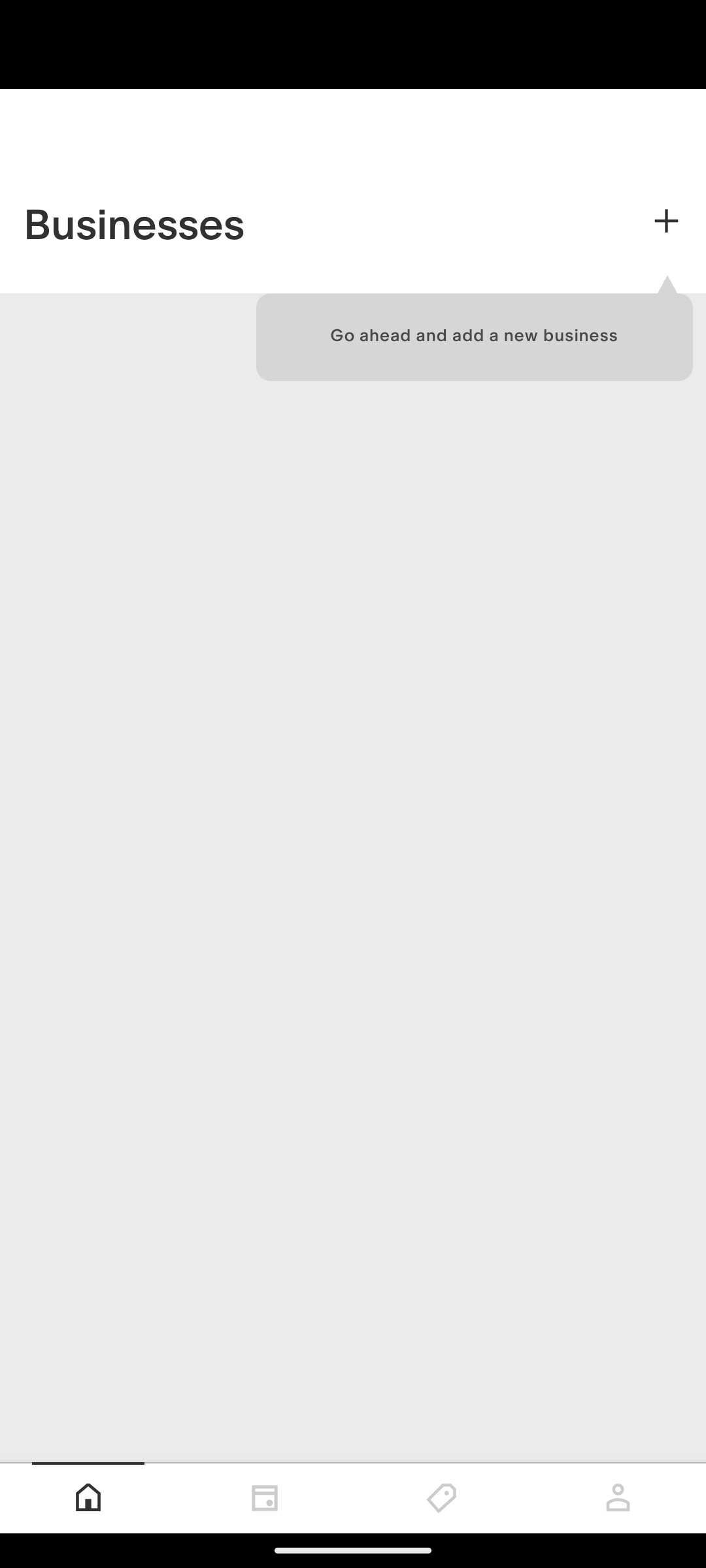
Mobile app interface with a section titled 'Businesses' and a prompt to add a new business, showing a plus sign icon.

a. From the app home screen, tap +.

Mobile app screen for adding a business with a URL input, a 'Add Business' button, and a QR code scanner option.

b. Tap the Business scheduling URL field and enter TM scheduling URL: https://tmotion.as.me/

Mobile app screen showing a successful message that a business was added successfully, with menu options including Home, Email, Tag, and Profile.

c. Tap Add business.

3. Book your next class

Book your first class or package purchase using the provided features on the app.
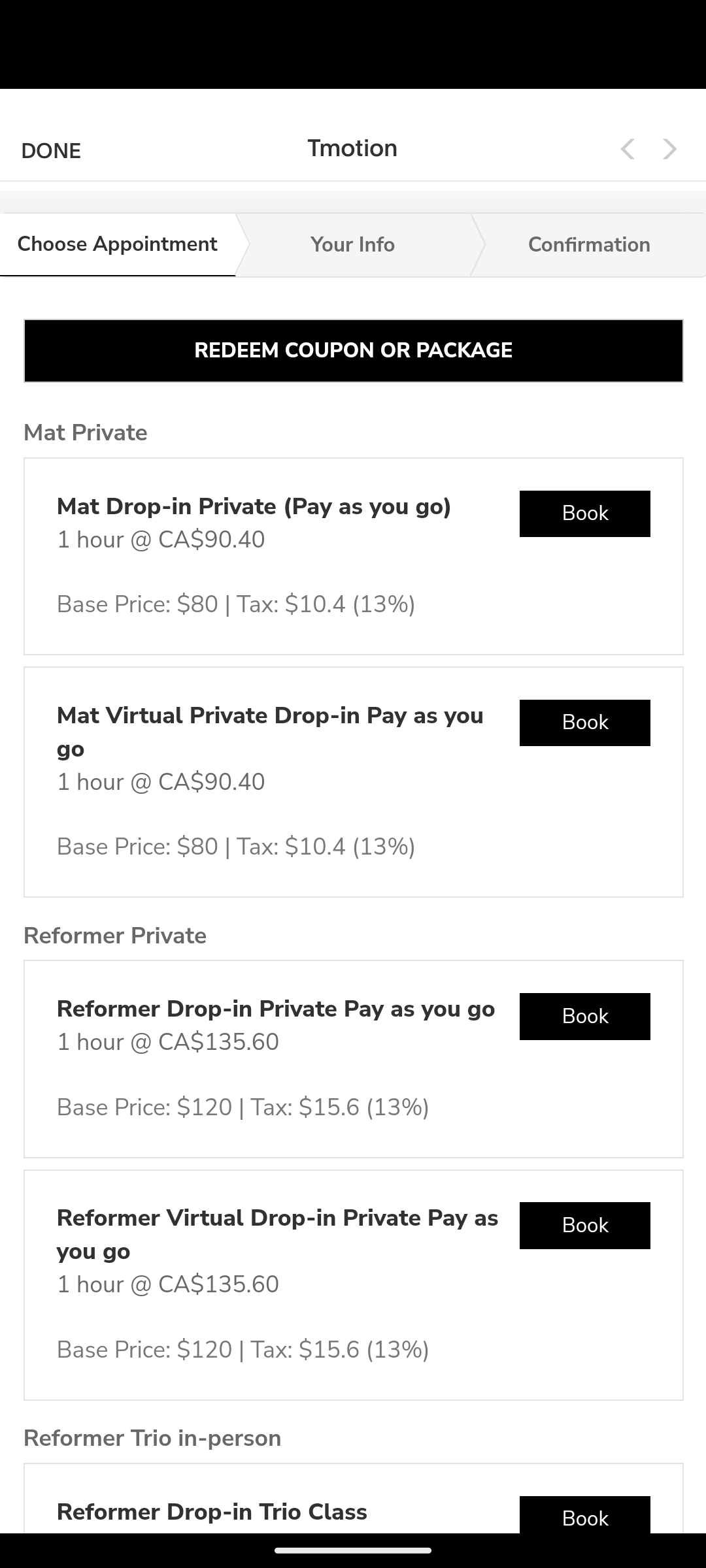
Screenshot of a mobile app interface showing a booking page for private gym mats, including options for private, virtual, and in-person reformer classes with prices and 'Book' buttons.

4. Registering an accounts

Screenshot of a scheduling website confirming an appointment for a reformed drop-in private pay session on September 28, 2024, at 12:30 pm, with options to cancel, reschedule, edit forms, add to iCal/Outlook, add to Google, or register for an account.

You are only able to register an account AFTER you book your a class from TM booking page or any pages that was sent to you to book classes.